
Fixing the Mycopunk Disconnected From Host Error in Multiplayer Co-op
Learn how to troubleshoot and fix the Mycopunk disconnected from host multiplayer error with proven co-op fixes, port forwarding, and file checks.
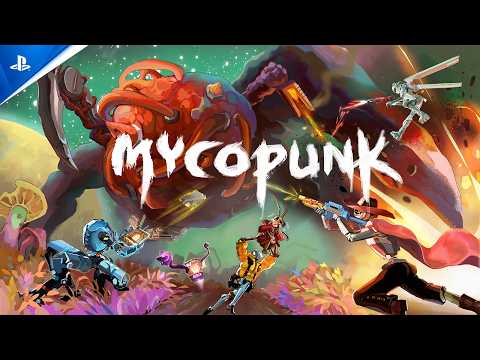 Official mediaLearn how to troubleshoot and fix the Mycopunk disconnected from host multiplayer error with proven co-op fixes, port forwarding, and file checks.YouTube
 Multiplayer co-op sessions can grind to a frustrating halt when you suddenly run into the Mycopunk disconnected from host error right in the middle of an intense run. Dealing with the Mycopunk disconnected from host prompt ruins the flow of cooperative gaming and leaves squads scrambling for working fixes.
Whether you are dropping out of active lobbies or getting booted right after loading into a session, connection drops can stem from several underlying network and system conflicts. Fortunately, a combination of firewall tweaks, antivirus file verification, and proper router settings can help you stabilize your connection and get back into the action.
Understanding Multiplayer Connection Drops in Co-op Games
Cooperative multiplayer titles rely heavily on stable peer-to-peer or dedicated server connections to keep players in sync. When packets fail to transmit properly, or when security software flags essential networking files, games will forcefully terminate the session.
Community reports frequently highlight how erratic these drops can feel. You might successfully connect to a lobby one minute, only to experience constant interruptions the next.
| Common Symptom | Typical Cause | Initial Impact |
|---|---|---|
| Instant drop upon joining | Full lobby or active match state | Prevents entry entirely |
| Mid-game drop (10–15 mins) | Antivirus quarantining files | Ruins active co-op sessions |
| Random lobby timeouts | Incorrect router port configuration | Intermittent connectivity |
Pinpointing the exact culprit requires methodically checking your game installation files, local network environment, and security software permissions.
Essential File Integrity Checks and Antivirus Rules
One of the most frequent reasons players experience sudden network interruptions involves security software mistakenly targeting essential game binaries. Many antivirus programs aggressively flag custom dynamic link library files—such as networking DLLs used by indie and co-op titles—as false positives.
When your security suite quarantines or deletes a core networking component, your client will launch, but it will inevitably crash or throw connection errors when trying to sync with a host.
| Security Check Step | Action Required | Recommended Setting |
|---|---|---|
| Antivirus Inspection | Open quarantine logs | Restore any removed DLL files |
| Folder Exclusion | Add game directory to exceptions | Bypass real-time scanning for the folder |
| Steam Verification | Run file integrity check via client | Automatically re-download missing files |
According to community feedback, ensuring your installation directory is fully whitelisted in Windows Defender or third-party antivirus suites prevents vital multiplayer modules from vanishing mid-game. You can verify your game files through platforms like Steam to ensure your installation is pristine.
Configuring Router Settings and Port Forwarding
If your installation files are fully intact and you still face the Mycopunk disconnected from host issue, the bottleneck might lie within your local network hardware. Network Address Translation (NAT) strictness and closed ports frequently prevent reliable peer-to-peer communication.
Setting up proper port forwarding ensures that data packets between the host and client travel without unnecessary interference from your router's firewall.
| Network Setting | Recommended Configuration | Purpose |
|---|---|---|
| Port Protocol | TCP and UDP (or Both) | Handles all incoming game traffic |
| Local IP Address | Static local IP assignment | Prevents IP changes from breaking rules |
| Enable Schedule | Always On | Eliminates timeout rules |
When setting up port forwarding for co-op gaming, make sure you map the correct ports directly to your machine's valid local IP address.
Troubleshooting Mid-Game Drops: Player Experiences
It can be especially jarring when you manage to join a match successfully, only to be booted fifteen minutes into the session. According to community reports from players working in IT and networking, even setups completely free of local firewalls can experience mysterious dropouts.
| Troubleshooting Method | Effectiveness | Notes |
|---|---|---|
| Disabling Firewall Temporarily | Moderate | Useful for diagnostic isolation |
| Direct LAN / Ethernet Connection | High | Eliminates Wi-Fi packet jitter |
| Restarting Network Hardware | Low-Moderate | Clears stale router routing tables |
When troubleshooting persistent mid-game drops, switching from a wireless connection to a wired Ethernet cable often resolves packet loss issues that trigger sudden disconnects.
Step-by-Step Fix Guide for Co-op Connectivity
To systematically eliminate connection drops, follow this structured recovery workflow designed to tackle both software and hardware bottlenecks:
- Verify Installation Files: Open your game launcher, navigate to properties, and run a full file verification to replace any corrupted or deleted networking libraries.
- Whitelist the Directory: Add your entire game installation folder to your antivirus exclusion list to stop it from deleting essential files in the background.
- Check Port Forwarding: Log into your router admin panel and verify that the required ports are correctly forwarded to your PC's static local IP address using both TCP and UDP protocols.
- Switch to Wired Connection: If you are playing on Wi-Fi, plug directly into your router via an Ethernet cable to minimize latency spikes and packet drops.
- Test with Firewall Off: Temporarily disable third-party firewalls to see if security filtering is blocking outgoing game data packets.
Frequently Asked Questions
What causes the Mycopunk disconnected from host error?
This error typically occurs due to blocked network ports, antivirus software quarantining essential multiplayer DLL files, unstable wireless connections, or firewall restrictions interfering with peer-to-peer data sync.
Does port forwarding fix multiplayer connection drops?
Yes, if your router is blocking incoming traffic on specific ports, configuring port forwarding ensures smooth communication between the game host and client machines, significantly reducing connection drops.
Why does my game disconnect after playing for 10 to 15 minutes?
Mid-game disconnects are often caused by aggressive antivirus software scanning and removing background networking components, or by intermittent packet loss on wireless network connections.
How can I prevent false positive file deletions by my antivirus?
Navigate to your antivirus settings, locate the exclusion or exception list, and add the entire game folder so your security software ignores it during real-time scans.
Related Guides
Can You Enjoy Mycopunk Single Player? A Complete Solo Guide
Wondering if Mycopunk single player is worth your time? Discover how solo progression works, difficulty scaling, builds, and tips for playing alone.
Mastering Mycopunk Matchmaking: Your Ultimate Guide to Co-Op Fungi Chaos
Dive into Mycopunk matchmaking with our complete guide. Learn how to team up, master roles, and conquer chaotic co-op fungal combat.
Mycopunk Crossplay Guide: Everything You Need to Know About Co-op Play
Discover the details behind Mycopunk crossplay, 4-player co-op features, weapon customization, and teaming up with friends in this sci-fi shooter.